Step 1. Start a new role
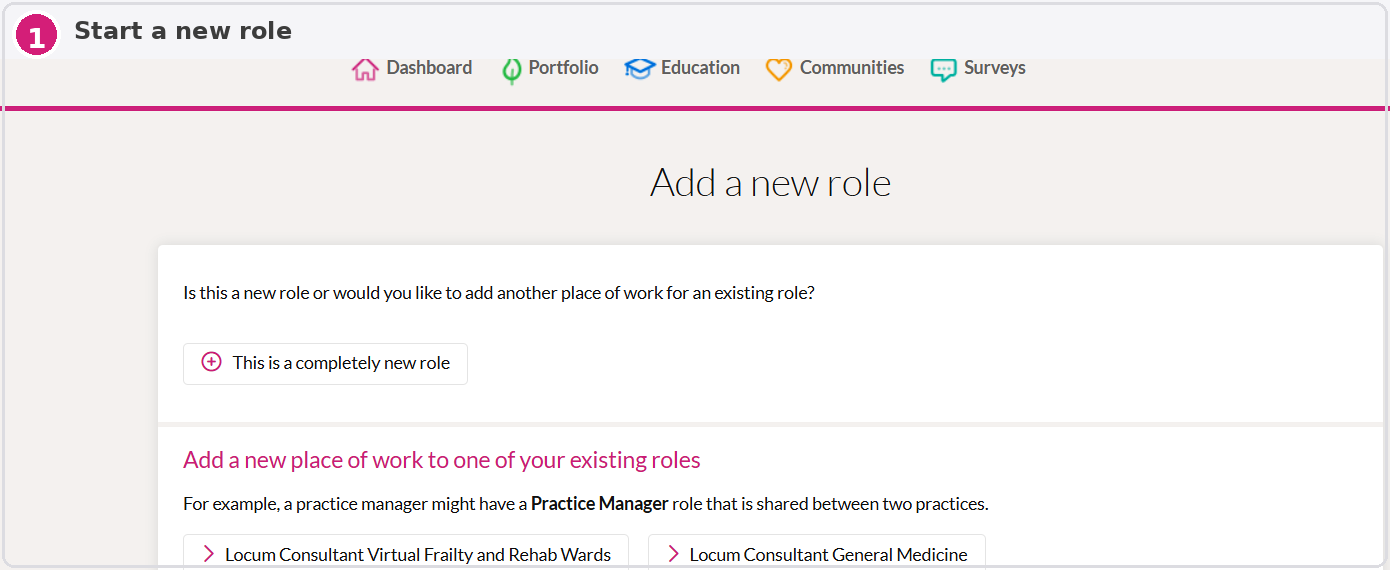
Go to “Add a new role”.
Click “This is a completely new role”.
Use this option when entering a separate job or post.
Step 2. Add the role name
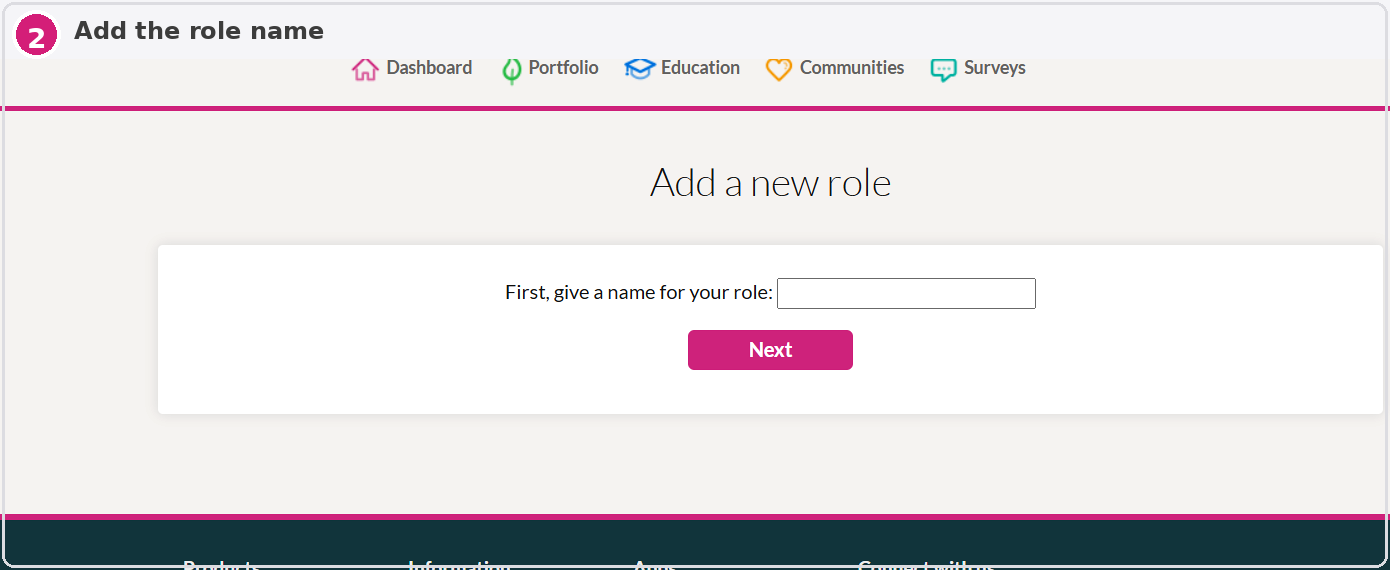
Enter a clear role title, for example: “SHO – Cardiology”.
Use a simple name that clearly identifies the post.
Then click “Next”.
Step 3. Choose the role type
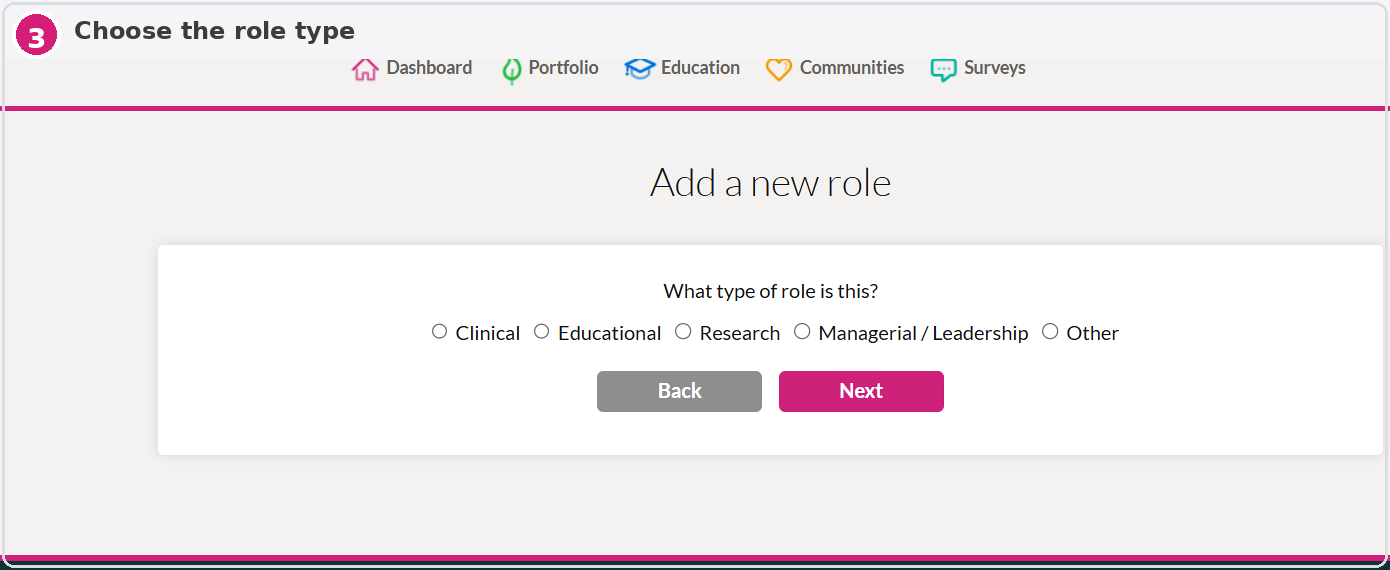
Select the most appropriate role type.
For most doctor posts, choose “Clinical”.
Then continue to the next screen.
Step 4. Add sessions and start date
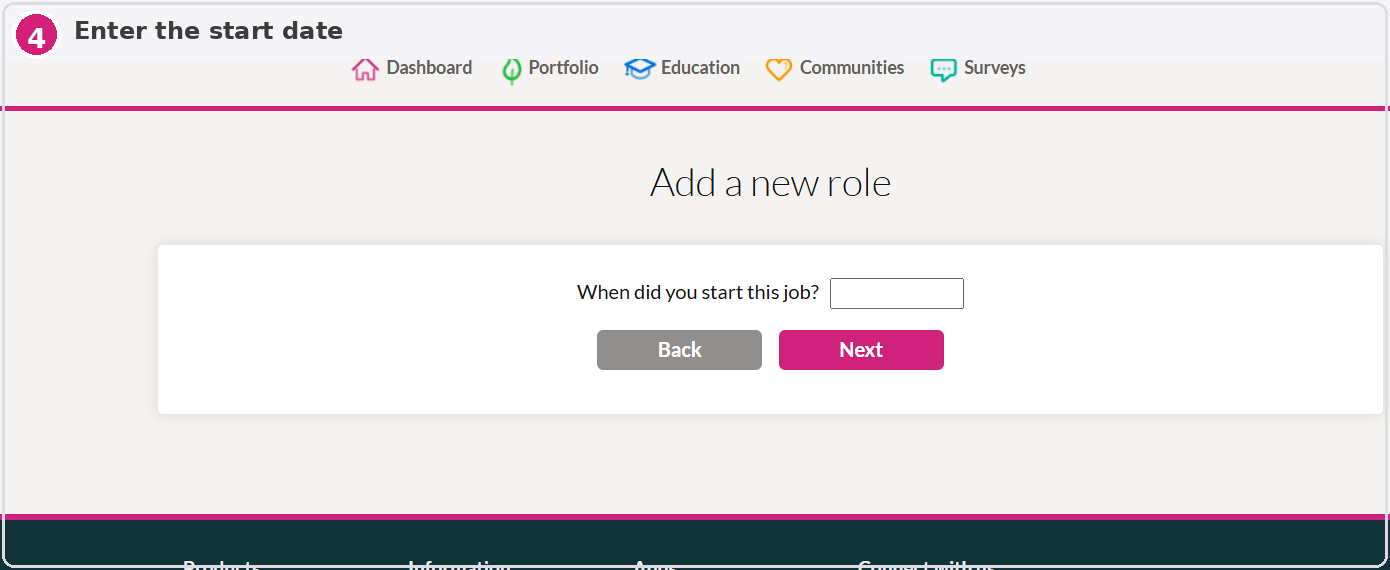
Enter the number of sessions worked.
As a rough guide, one half day is approximately one session.
A full-time Monday to Friday 9–5 clinical post is usually around 10 sessions.
Then enter the date the role began.
Step 5. Confirm whether the role is ongoing
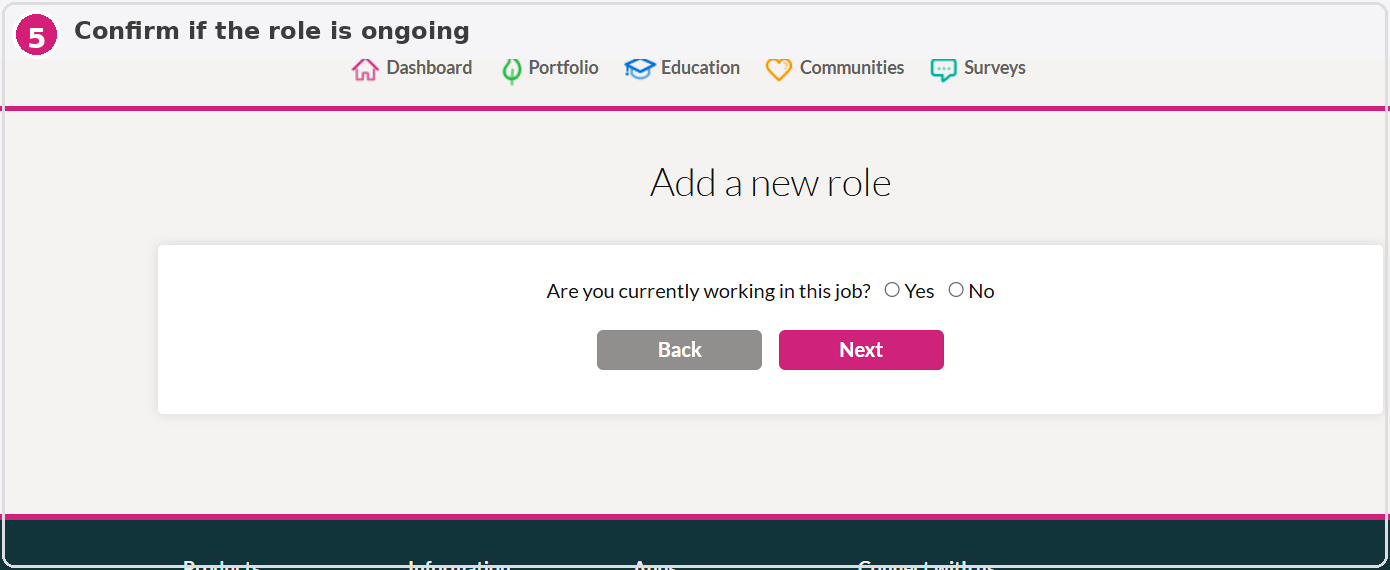
Select “Yes” if you are still working in the role.
Select “No” if the role has finished.
Step 6. Add employer details
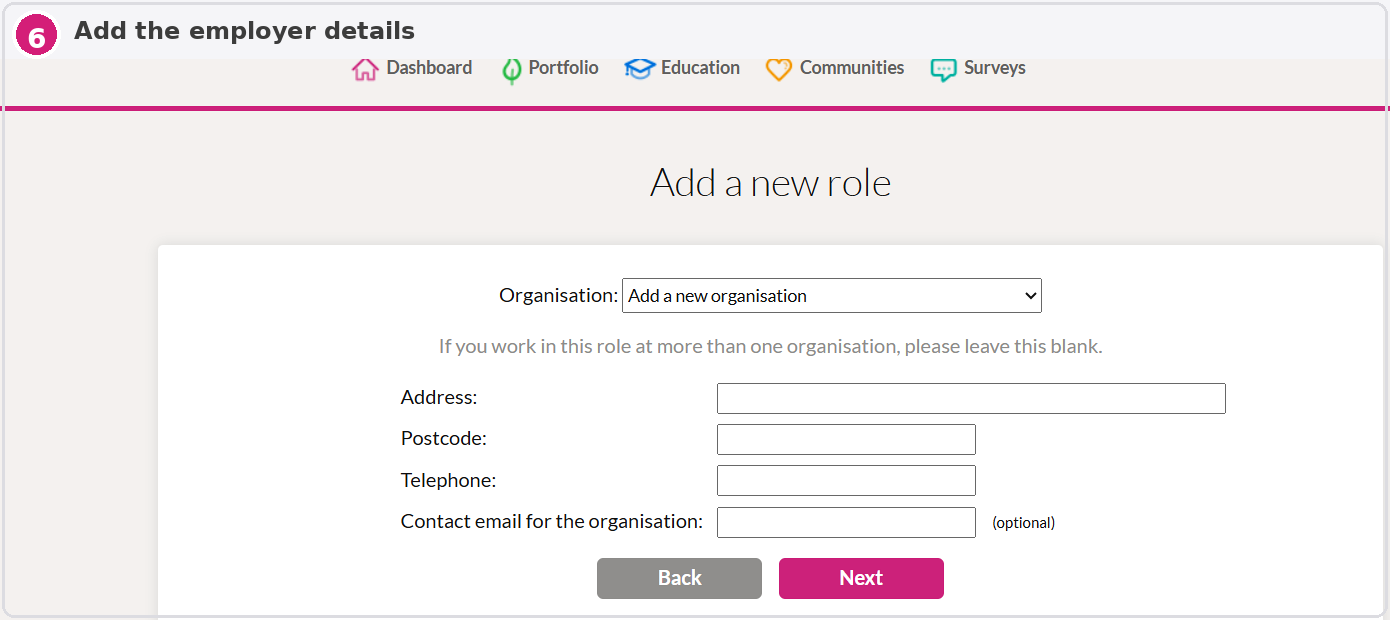
Enter the organisation or employer name.
Add the address and any other requested details.
This will usually be the Trust, hospital, practice, or employer.
Step 7. Add a brief role description
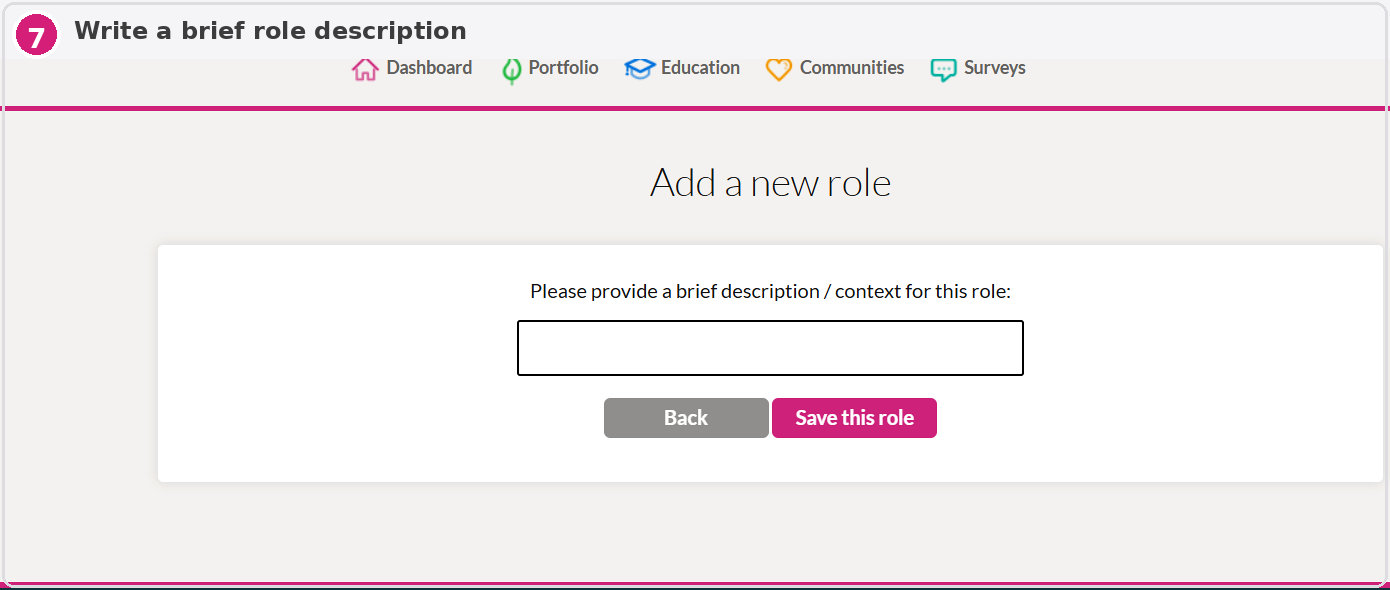
Summarise what the role involves.
Include your grade, specialty, patient group, and key responsibilities.
A concise but meaningful description is usually enough.
Example role description
Consultant Physician – 22-Bed Mixed Medical Ward
Senior consultant overseeing the care of adult inpatients across a mixed acute, general, and geriatric caseload.
Leads daily consultant ward rounds to support safe, evidence-based, patient-centred care.
Develops plans from urgent treatment through to rehabilitation and discharge.
Supervises junior doctors and contributes to teaching and workplace-based assessments such as CBDs, Mini-CEX and DOPS.
Contributes to family discussions, advance care planning, DNACPR decisions, board rounds, and MDT meetings.
What the finished entry looks like
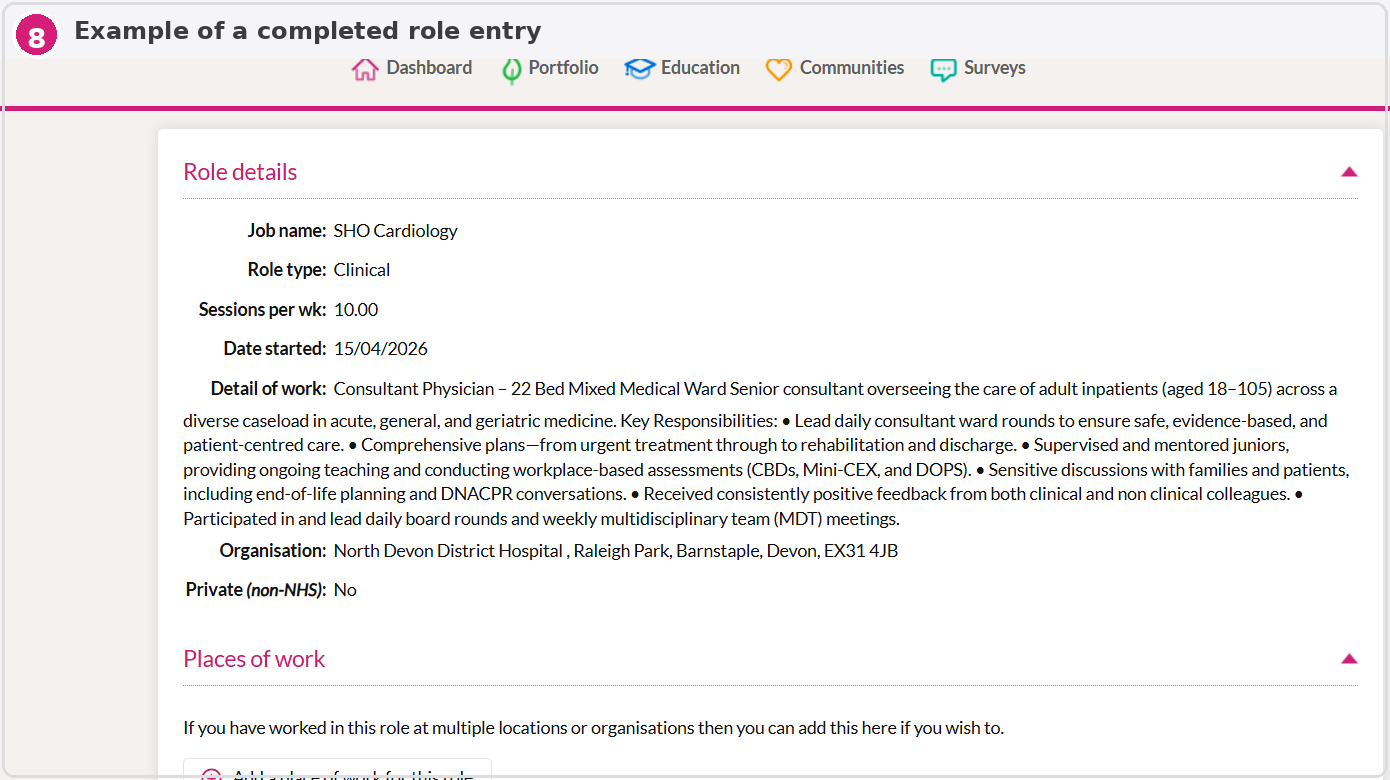
Once saved, the role will appear in your Scope of Work section like the example below.