Step 1. Open Supporting Information
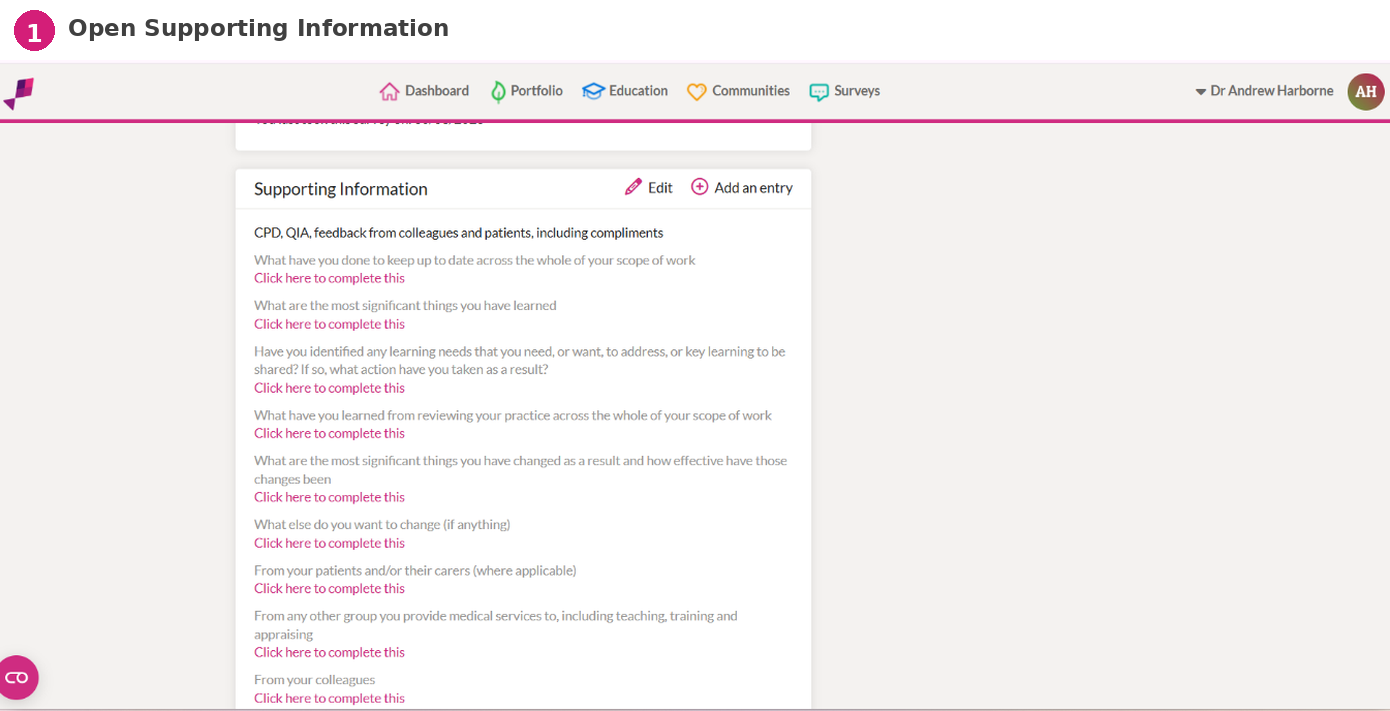
Open the appraisal you are working on in FourteenFish.
Scroll to the “Supporting Information” section.
Click “Add an entry”.
Step 2. Choose CPD
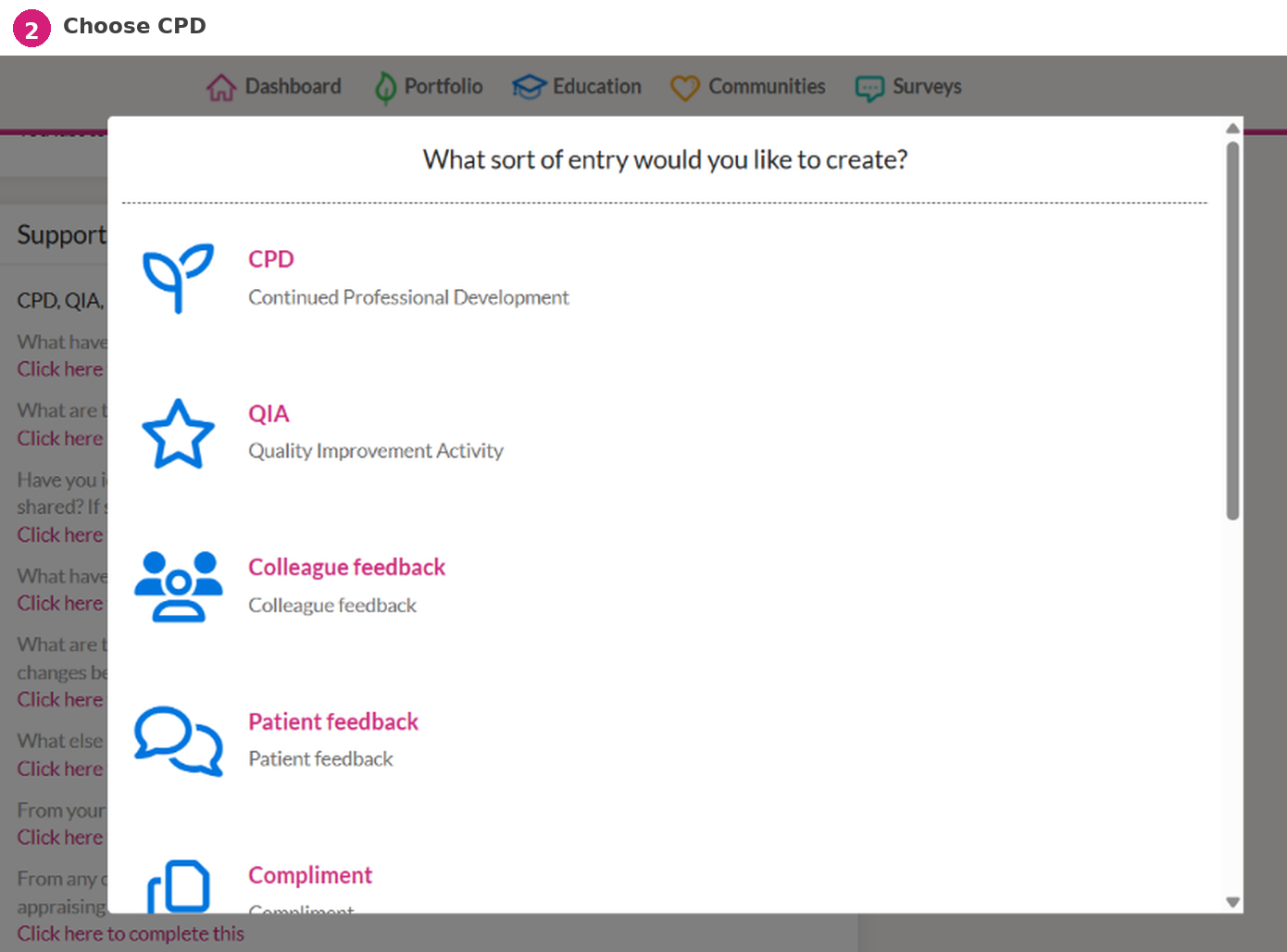
Select “CPD – Continued Professional Development”.
This opens a new CPD entry form.
Step 3. Complete the CPD details
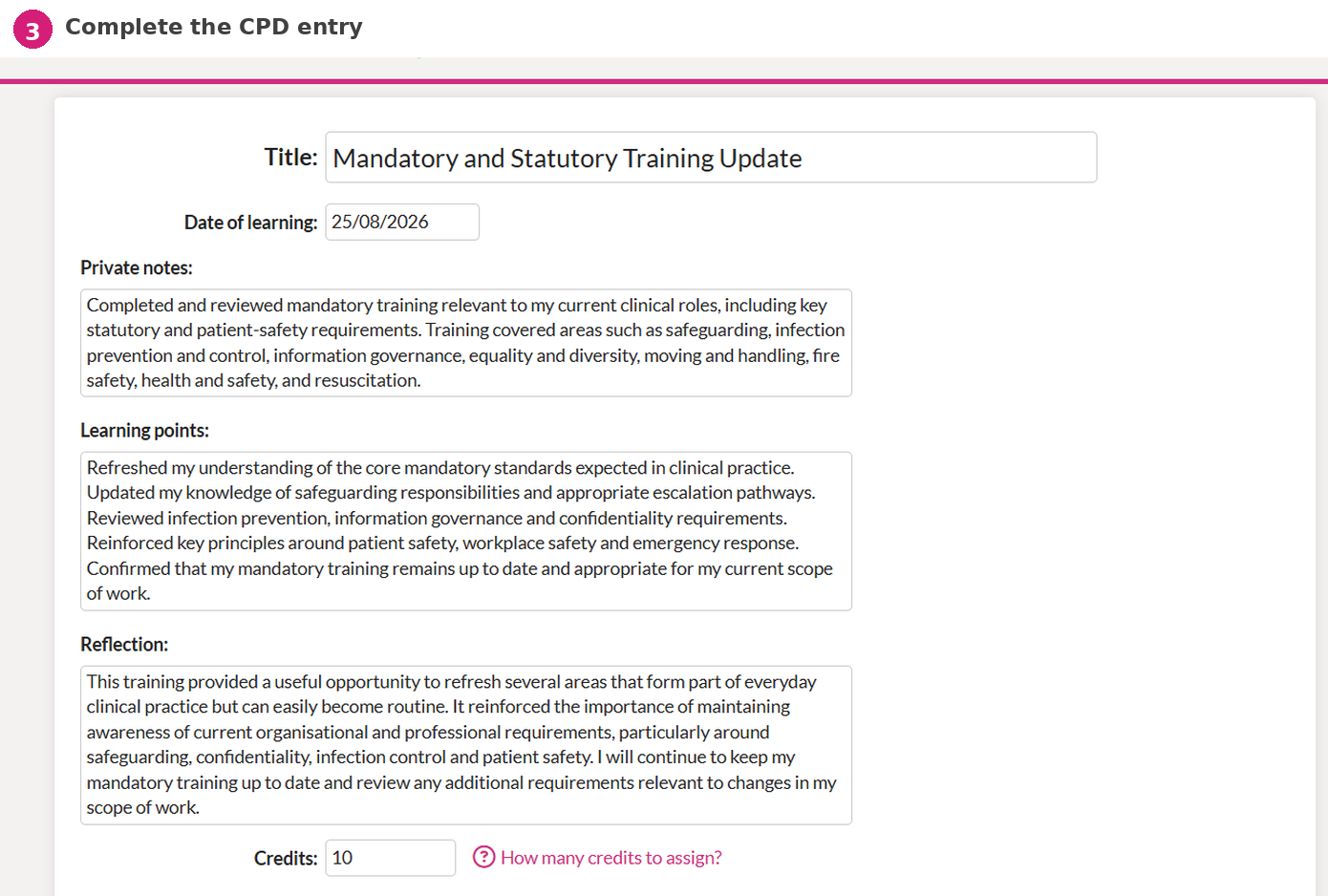
Title – use a short, clear name that identifies the learning activity.
Date of learning – enter the date the learning took place.
Private notes – briefly describe what the CPD activity was and the context for it.
Learning points – record the main things you learned or refreshed.
Reflection – explain how the learning has influenced, reinforced, or changed your practice.
Credits – enter the number of CPD credits or hours you are claiming for the activity.
Example CPD entry
Mandatory and Statutory Training Update
Private notes: Completed and reviewed mandatory training relevant to current clinical roles, including safeguarding, infection prevention and control, information governance, equality and diversity, moving and handling, fire safety, health and safety, and resuscitation.
Learning points: Refreshed key mandatory standards and reviewed safeguarding, infection control, confidentiality, patient safety, workplace safety, and emergency response requirements.
Reflection: This was a useful refresh of areas used routinely in clinical practice. It reinforced the importance of keeping mandatory training current and reviewing any additional requirements as my scope of work changes.
Step 4. Attach evidence
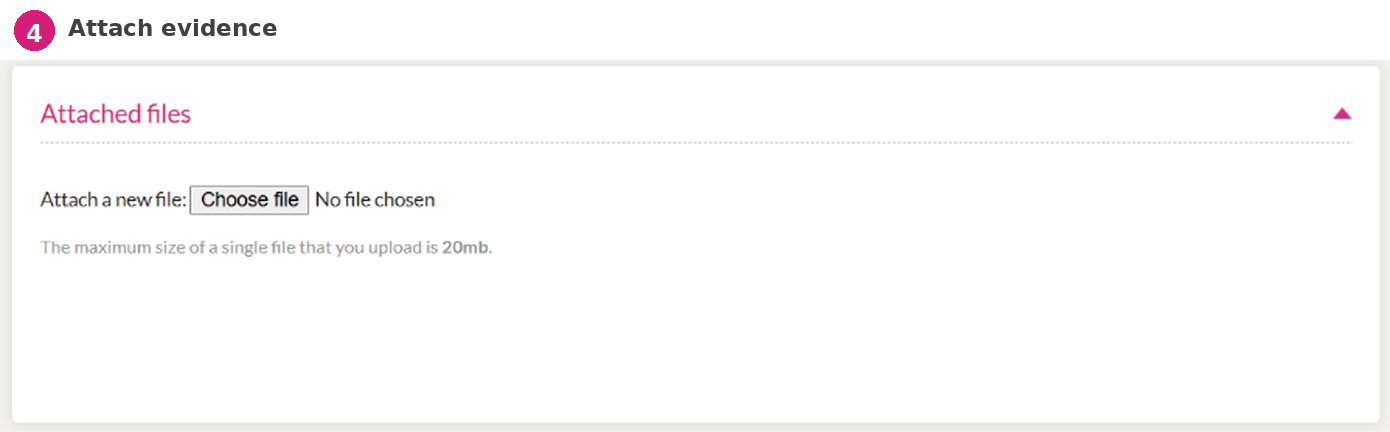
Open the “Attached files” section.
Click “Choose file” and upload evidence where available.
Useful evidence may include a course certificate, attendance record, completion certificate, learning notes, or other evidence that supports the CPD activity.
Step 5. Save the entry
Scroll to the bottom of the form and click “Save”.
The CPD entry will then appear under Supporting Information in your appraisal portfolio.